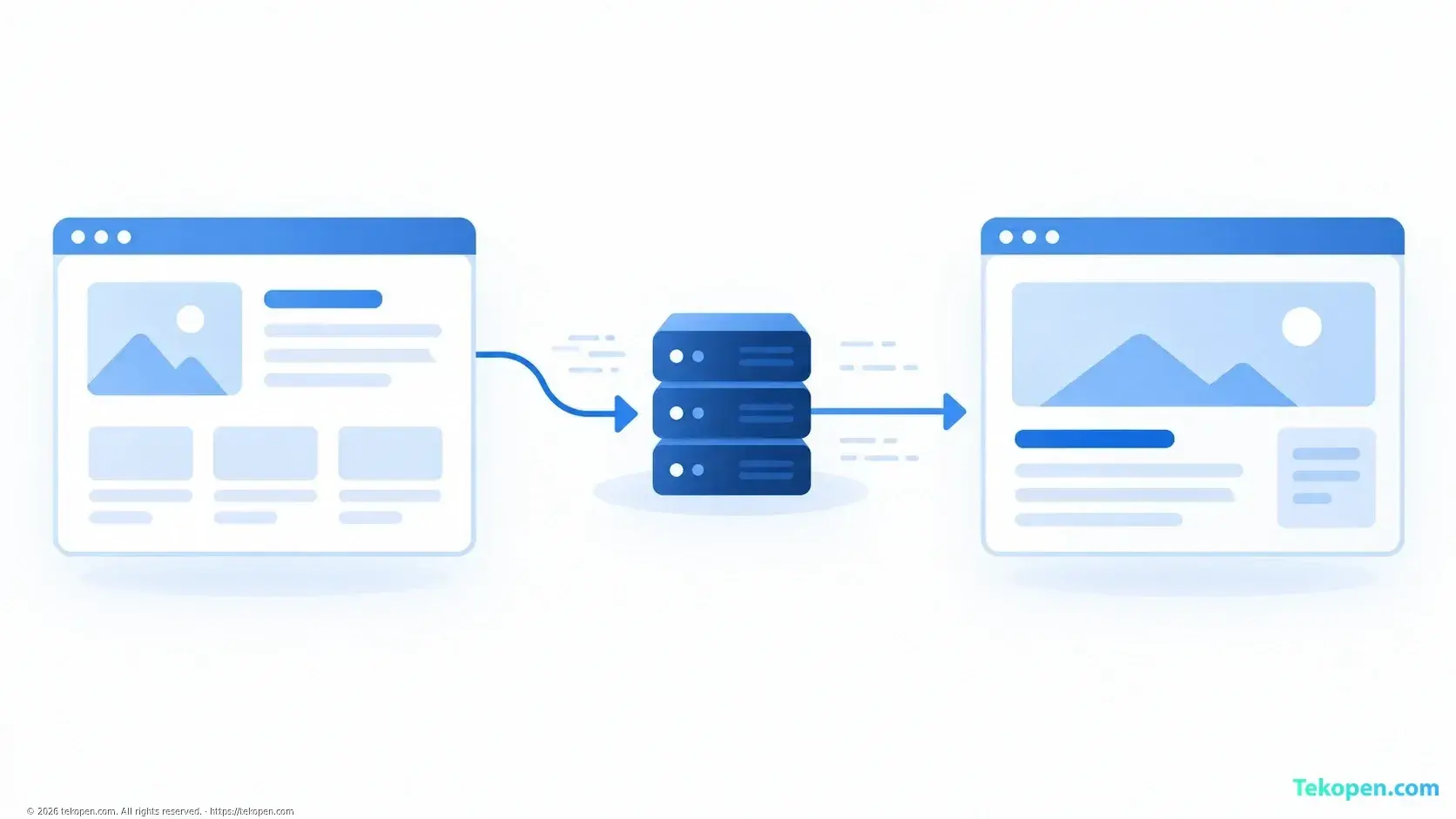
When changing an article URL or domain name, you can use Redirects in cPanel to send visitors from the old URL to the new one. Choose 301 for a permanent change, 302 for a temporary move, then check both the destination URL and the HTTP response code.
What matters is not just that the redirect works, but that it takes readers to the content they need.
1. Choose the Right Redirect Type
Situation | Recommended Type | Notes |
|---|---|---|
Permanently changing an article URL | 301 | Redirect to the corresponding article |
Changing a domain name for the long term | 301 | Map old URLs to new URLs |
Redirecting to an alternative page for a short time | 302 | Remove the rule when the temporary period ends |
Deleting a page with no replacement content | A redirect is not necessarily needed | You can retain an appropriate 404 or 410 response |
Do not redirect every deleted URL to the homepage. If the destination page does not meet the reader’s original need, the experience will still be poor. Redirects also do not guarantee that search rankings will remain unchanged.
2. Prepare Before Configuring
Record each pair of source URL → destination URL. Check that the destination page is working and has relevant content.
The source domain must be configured so that requests reach the server handling the redirect. For source URLs that use HTTPS, the TLS certificate must also be valid: the browser establishes an HTTPS connection before receiving the redirect.
Back up the file .htaccess if your hosting uses it, and review the existing rules. A WordPress website may already be redirecting through a plugin or its own configuration. Avoid creating duplicate rules in cPanel, WordPress, and your CDN.
If the website has just been set up, double-check the domain name and directory using the guide to safely installing WordPress on cPanel before adding a redirect.
3. Create a Redirect in cPanel
According to Vietnix’s guide to using Redirects, you can configure redirects under Domains → Redirects. Section names and layouts may vary depending on the hosting interface.
Follow these steps:
Log in to cPanel and open Redirects.
Under Type, select Permanent (301) or Temporary (302).
Select the source domain. Avoid selecting all domains if you only want to change one website.
Enter the source path in the field after
/. Leave it blank when configuring a redirect for the domain’s root URL.Under Redirects to, enter the full destination URL, including
https://and the path, if any.Choose how to handle www, then click Add.
If the Wild Card Redirect option is available, enable it only if you want to preserve the corresponding paths when moving to another domain. Do not use this option if the new URL structure has changed.
4. Check the Results and Troubleshoot
Open the old URL in a private window to reduce the effect of the browser cache. In the browser’s developer tools, check the Network tab for the 301 or 302 code and the URL in the Location field.
Also check that:
URLs with and without
wwwwork, if both are used.The destination page returns its content normally, without a 404 error.
The old URL does not redirect back to itself or go through unnecessary steps.
Internal links point directly to the new URL.
If there is a loop, review the rules in cPanel, WordPress plugins, and your CDN. If a rule does not run, the processing order in .htaccess may be the cause; ask your hosting provider to check rather than deleting the entire file.
Conclusion
Redirects in cPanel are suitable for clearly defined URL changes. Choose the right redirect type, use a relevant destination page, and check the HTTP response. When changing domain names, do not delete the old domain’s configuration or stop renewing it too soon if you still need to support old links.
Frequently Asked Questions
Do redirects in cPanel change DNS?
No. Redirects handle web requests, while DNS determines where a domain name resolves. If a request does not reach the server containing the redirect rule, that rule cannot redirect the visitor.
Do I need to keep my old hosting after changing domain names?
You need to maintain a system that serves redirects for the old domain, but you do not necessarily need to keep the same hosting plan. Before canceling, confirm that the replacement system correctly handles the URLs, HTTPS, and paths that need to be redirected.
Why does the browser still redirect after I have deleted the redirect?
The browser may have cached the previous redirect, especially a 301. Try a private window, check with an HTTP response inspection tool, and review your CDN cache and WordPress rules.
Do redirects prevent others from accessing private files?
Do not use redirects as a security measure. For private files, configure access permissions or authentication, or place the files outside the public web directory. Redirects do not replace access control mechanisms.