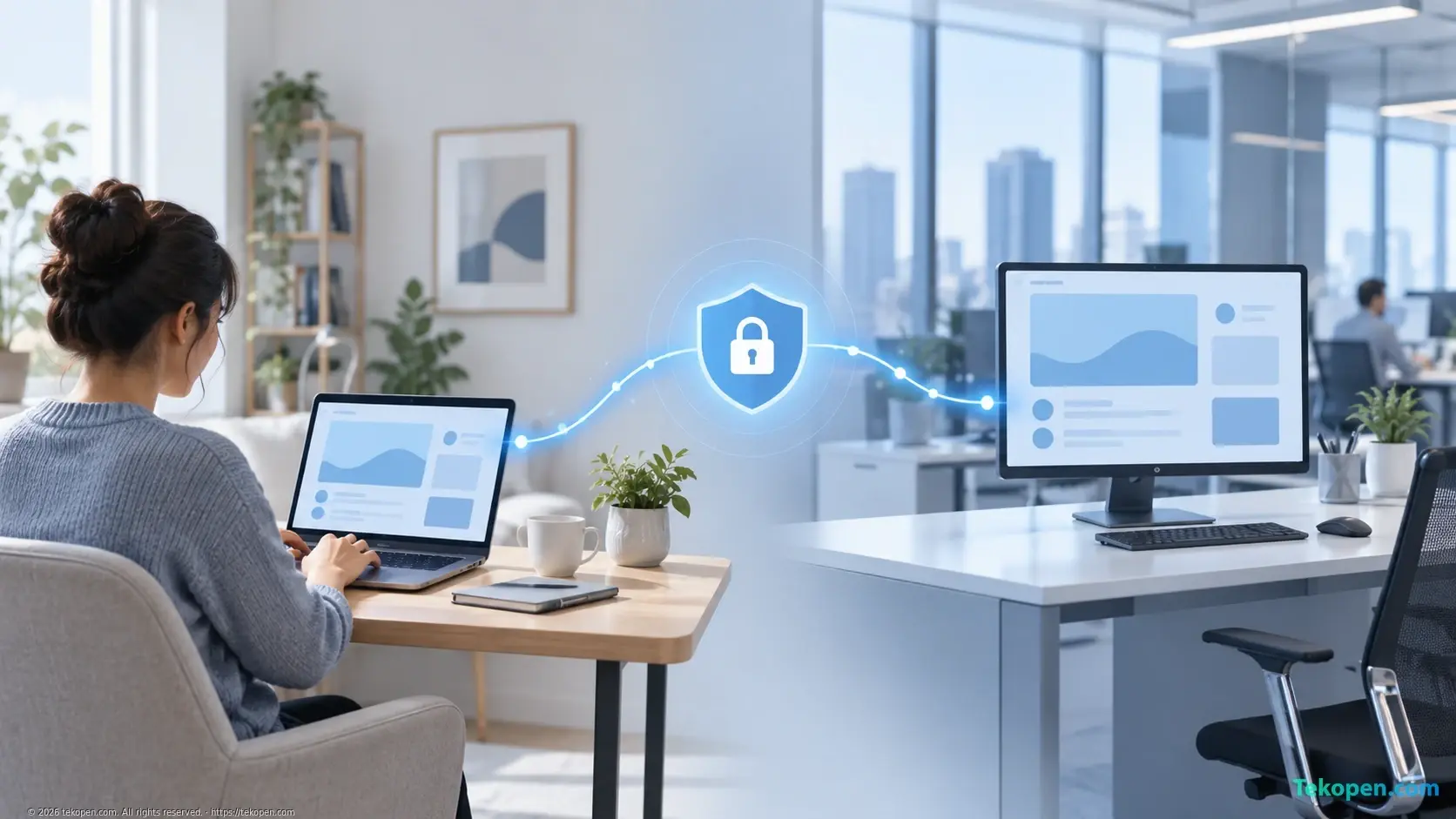
Remote Desktop lets you control a Windows computer from another device and use applications and files on the target computer. To work remotely safely, check compatibility, enable the feature on the target computer, and connect through a local network or a managed VPN rather than opening an access port directly to the Internet.
If you are exploring Remote Desktop on Windows 10, you should distinguish between the computer receiving the connection and the computer used to access it. Not every Windows edition can act as the receiving computer.
When Should You Use Remote Desktop?
This tool is useful when your applications, data, or work environment are on a computer at the office. You control that computer remotely instead of reinstalling all the software on your personal laptop.
For example, some deployments of ERP software or CRM have client applications installed on company computers. Remote Desktop can be useful in this situation. If the system is already accessible through a browser under company policy, you may not need to control a computer remotely.
Step 1: Check Connection Requirements
Before setting up, confirm the following:
Windows edition: Windows 10/11 Pro, Enterprise, and Education support receiving connections through the built-in Remote Desktop feature; the Home edition does not support this role.
Target computer status: The computer must be on, connected to a network, and not in sleep mode when you need to access it.
Account: It must have a strong password and permission to sign in remotely.
Network connection: Both devices must be on the same network or have a connection path approved by the administrator.
Prioritize an operating system that is still supported and receives security updates. For company devices, get permission from IT before changing the configuration.
Step 2: Enable Remote Desktop on the Target Computer
Open Settings > System > Remote Desktop and enable the feature. The name or location of this setting may vary slightly between Windows versions.
Note the computer name, check the list of users allowed to access it, and keep Network Level Authentication (NLA) enabled when the device supports it. NLA requires authentication before establishing a session, but it does not replace network security measures.
Do not disable the entire firewall to troubleshoot connection issues. Allow only the necessary rules within the appropriate network scope.
Step 3: Connect from Your Device
On the Windows computer you are using to connect, open Start, search for Remote Desktop Connection, then enter the target computer's name or local IP address. Next, sign in with an account that has been granted access.
If you are working outside the office, connect to the company's VPN first, or use a Remote Desktop gateway configured by IT. Do not set up RDP port forwarding on the router yourself to expose the computer directly to the Internet.
When an identity or certificate warning appears, check with the administrator rather than routinely dismissing it.
Step 4: Troubleshoot in the Right Order
If you cannot connect, check the following in order: whether the target computer is on, whether the VPN is connected, whether the computer name is correct, whether the account has permission, and whether the firewall allows the connection.
If the session is slow, try lowering the resolution and turning off visual effects. Do not enable drive or clipboard redirection if your work does not require it and policy does not allow it.
Conclusion
Remote Desktop is useful when you need the work environment on your office computer. A good approach is to grant only the minimum permissions, use a protected connection, and ask IT to check the configuration before you connect from outside the office.
Frequently Asked Questions
Can Windows Home Use Remote Desktop?
Windows Home can use a client application to access another computer, but it cannot receive connections through the built-in Remote Desktop feature. If you need to access a Home computer remotely, choose a solution approved by IT or a suitable Windows edition.
Does DDNS Make Remote Desktop More Secure?
DDNS helps keep a domain name pointing to an IP address that may change. It does not itself provide authentication, access control, or protection for the RDP service against the Internet, so it cannot replace a VPN or a managed access gateway.
Does Closing the Remote Desktop Window Sign You Out of the Target Computer?
Closing the window usually only disconnects you, while the session and applications may continue running depending on system policy. If you need to end the session, save your work and then select Sign out on the target computer.
Should You Use an Administrator Account for Everyday Access?
Use an account with only the permissions needed for your work. Administrator accounts should be reserved for authorized administrative tasks to limit the consequences if login credentials are exposed.